Split full names into first and last name
To split full names in a CSV, open the name splitter in Sigmera, pick the name column and the format (First Last or “Last, First”), and get separate first and last name columns — plus an optional middle name. Preview the result, then download the split file. Sigmera does this entirely in your browser, so your data is never uploaded to a server and stays GDPR-safe by design.
Last updated: October 2026
Use the name splitter free in your workspace
Free account, no credit card — every tool, unlimited rows, 3 free downloads a month, nothing uploaded.
🔒 Everything runs in your browser — your file is never uploaded, and the workspace even works offline once it has loaded.
Ways to split a name column, compared
| Method | Data uploaded? | Handles "Last, First" | Skill needed |
|---|---|---|---|
| Sigmera (this tool) | No — runs in browser | Yes, automatically | None |
| Excel TEXTSPLIT / LEFT-RIGHT formulas | No | Only with custom formulas | High (formulas) |
| Excel Flash Fill | No | Sometimes (pattern-dependent) | Medium |
| Python / pandas | No | Yes, with code | High (code) |
How to split first and last name into two columns
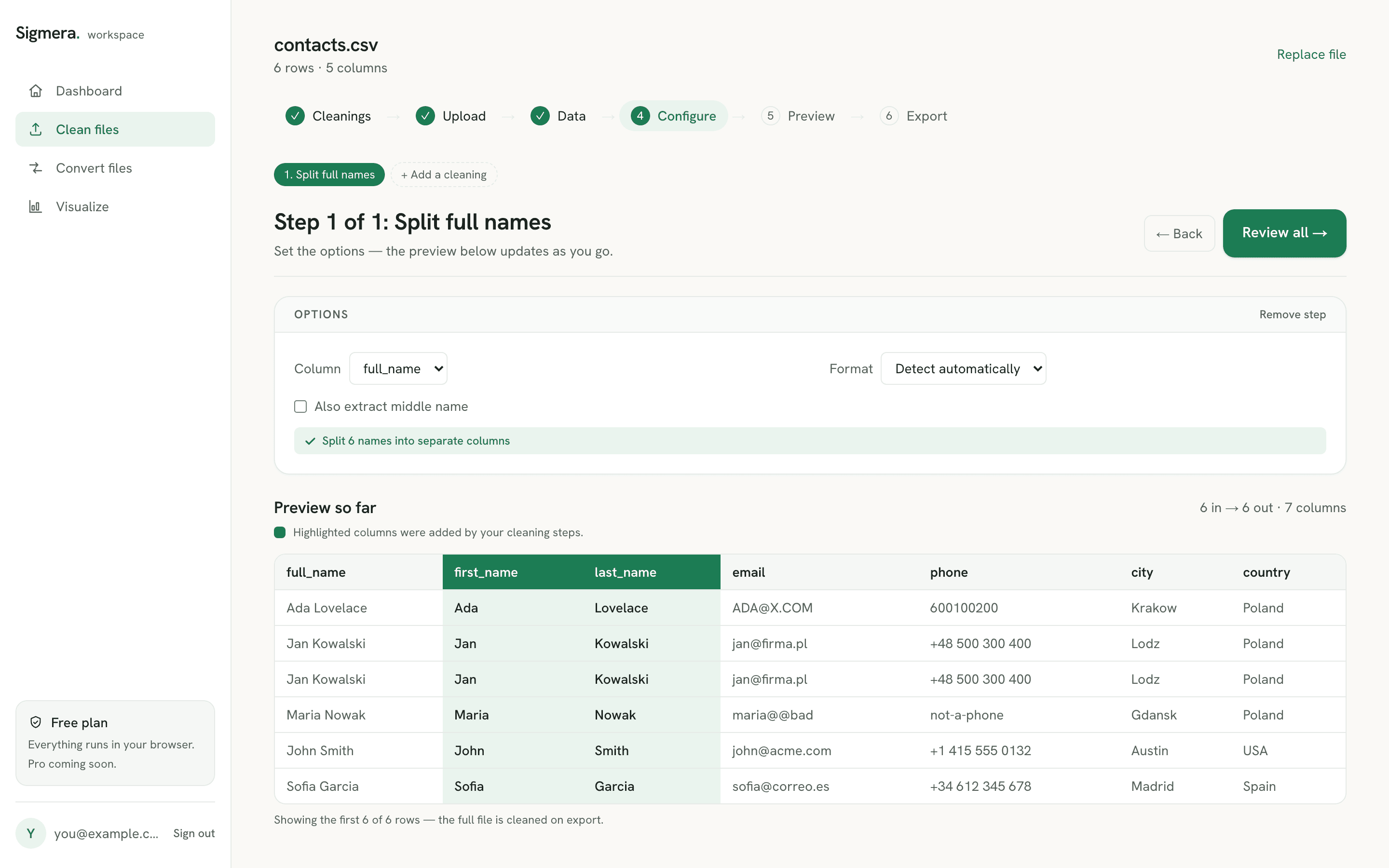
- 1. Drop your CSV into the tool. The file is read into your browser’s memory — it is never sent over the network.
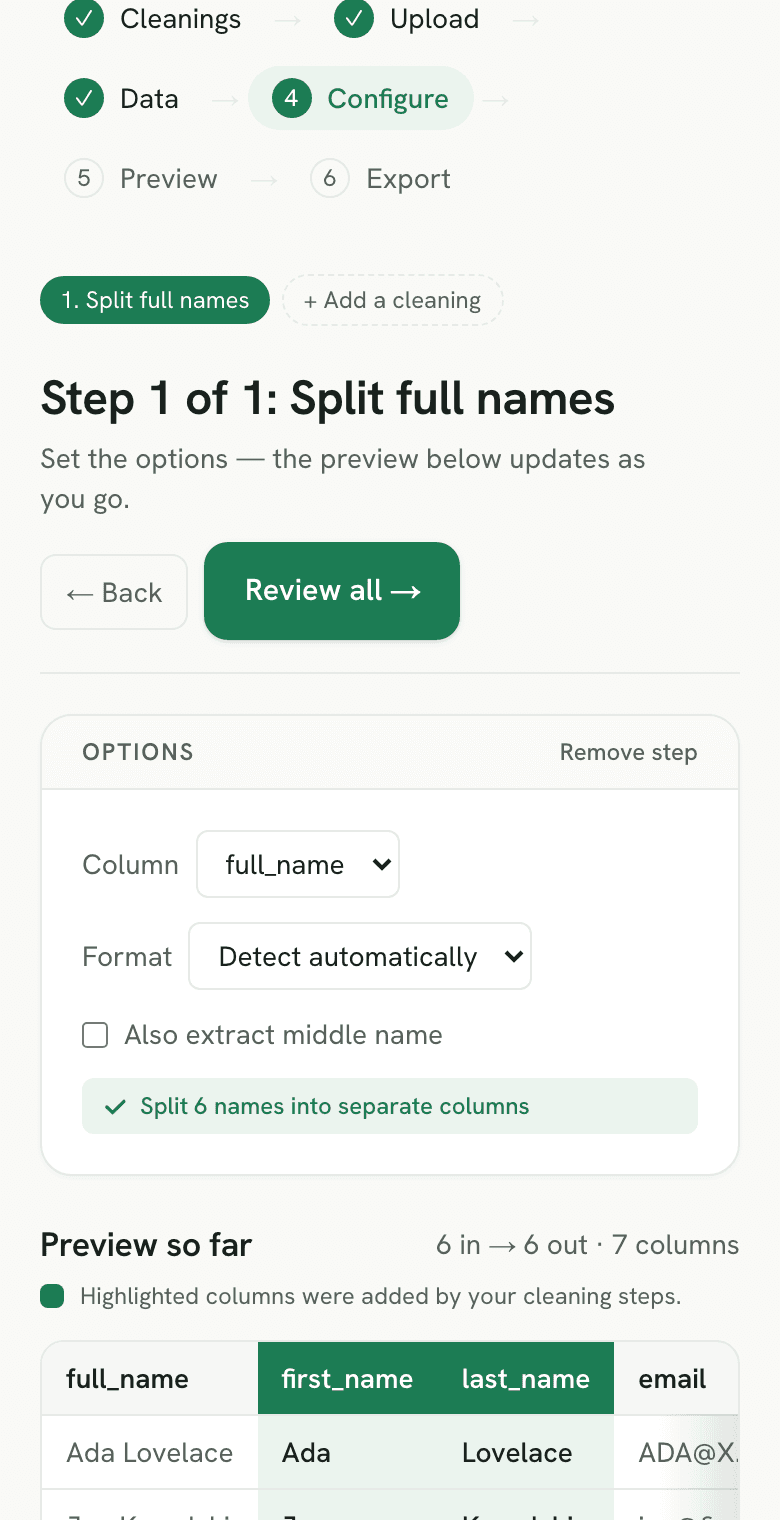
- 2. Pick the name column and format. Sigmera auto-detects a column containing “name”, but you can override it. Choose First Last, “Last, First”, or let it detect the order per row.
- 3. Preview the split. New first_name and last_name columns (and middle_name if you enabled it) appear next to your original data, with a count of how many names were split.
- 4. Download the split file. Create a free account to export the full CSV with the new name columns.
Why split names without a formula?
Splitting a name column sounds trivial until you meet real data. Some rows are “First Last,” some are “Last, First,” some carry a middle initial, and others are a single mononym with no last name at all. Excel formulas and Flash Fill’s pattern guessing can handle the clean cases, but they break the moment the pattern shifts — and they assume you’re comfortable writing nested FIND and MID expressions. For non-technical users that’s a real wall. Sigmera handles the messy reality in the browser: it switches on a comma automatically, optionally pulls the middle tokens into their own column, and shows you a preview so you can catch the awkward rows before you commit. Because the file never leaves your device, there is no upload, no server, and nothing stored — which satisfies GDPR data-minimization because zero bytes leave the browser.
Prefer to do it in a spreadsheet? Our guide on how to separate names in Excel walks through Text to Columns, Flash Fill, and the LEFT/RIGHT/FIND formulas step by step.
Names that will not split cleanly
No splitter — formula, script, or tool — gets every row right, because “first name then last name” is not a universal structure. The W3C’s guidance on personal names is blunt about it: name order is reversed in Chinese, Japanese, Korean, and Hungarian names, where the family name comes first when reading left to right, and in parts of Southern India, Malaysia, and Indonesia a large number of people have a given name only, with no family name to extract at all (W3C Internationalization). Icelandic names follow the father’s or mother’s name rather than a family name in the Western sense.
Practically, that means four row types deserve a look before you download:
- Family-name-first rows — safe if a comma marks them (“Hopper, Grace”), a silent flip if it does not.
- Mononyms — one token, so the last-name column comes out empty rather than wrong.
- Particles and two-word surnames — “Van Der Berg”, “de la Cruz”: the inner tokens can land in the middle-name column.
- Suffixes and titles — the final token becomes the last name, so “Jr.”, “III”, or “PhD” lands in last_name and the real surname moves to middle_name.
This is exactly why the preview exists. Sort by the new last_name column, scan the blanks and the odd ones, and fix that handful by hand — a far shorter job than debugging a nested FIND expression that was quietly wrong on 3% of rows.
Strip titles like Dr. and Mrs. before you split
Suffixes at the end of a name are hard to catch automatically. Titles at the start are easy, and worth removing before the split runs. The splitter reads the first word as the first name, so a title takes the first_name slot and pushes the real given name inward. With “Also extract middle name” off, the given name is not in any of the new columns at all:
| full_name | Split directly (first / last) | Title removed first |
|---|---|---|
| Dr. Grace Hopper | Dr. / Hopper | Grace / Hopper |
| Mrs. Ada Lovelace | Mrs. / Lovelace | Ada / Lovelace |
| Prof. Alan Turing | Prof. / Turing | Alan / Turing |
The fix is one extra step in the same workspace. Before the split, add a find and replace step on the name column: find Dr. with the trailing space and leave the replacement empty, then add one step per title your list actually contains. The trailing space matters, because it stops the match from eating into a name. Matching ignores case unless you tick Match case, so “DR. ” and “dr. ” go too. By default the result lands in a new _cleaned column beside the original, so point the split step at that column, not the raw one.
How to split first and last name in Excel with TEXTSPLIT
Excel’s modern answer is TEXTSPLIT, whose signature is TEXTSPLIT(text, col_delimiter, [row_delimiter], [ignore_empty], [match_mode], [pad_with]) — it splits across columns or down rows and spills the fragments into the cells beside the original (Microsoft Support). So =TEXTSPLIT(A2, " ") gives you a first and last name from “Ada Lovelace”.
Two constraints decide whether it is the right tool for your file. The first is the version: Microsoft lists TEXTSPLIT as applying to Excel for Microsoft 365, Excel for Microsoft 365 for Mac, Excel 2024, and Excel 2024 for Mac. On Excel 2021 or earlier it returns #NAME?, so a workbook built around it breaks for any colleague on an older build.
The second is the ragged-row problem again. Because the result spills as far as the row needs, a three-token name takes three columns and a two-token name takes two, and pad_with — which defaults to #N/A — decides what fills the gaps in the rest. You end up with a block whose width is set by the longest name in the column and #N/A scattered through the short rows, which is not a shape any import wizard accepts. The splitter above writes exactly two columns (three with middle names) on every row instead, and leaves a mononym’s last_name empty rather than padding it. For the Text to Columns and Flash Fill routes, and the LEFT/RIGHT/FIND formulas that work on every Excel version, the full Excel walkthrough covers each one in order.
How to split first and last name in Google Sheets
Sheets has two built-in routes, and both have a catch worth knowing before you run them on a real list. The formula route is SPLIT, whose signature is SPLIT(text, delimiter, [split_by_each], [remove_empty_text]) — it “divides text around a specified character or string, and puts each fragment into a separate cell in the row” (Google Docs Editors Help). So =SPLIT(A2, " ") spills a first and last name into the two cells beside the original.
The catch is split_by_each, which defaults to TRUE: every character in your delimiter is treated as its own separator. Pass ", " to handle “Hopper, Grace” and Sheets splits on the comma and on the space, producing an empty fragment in the middle unless you also deal with remove_empty_text. The menu route, Data → Split text to columns, avoids the formula but writes over whatever is in the columns to its right, so insert blank columns first or you will overwrite live data.
Both share the deeper problem: they split on every occurrence of the delimiter, so the number of columns you get depends on the row. “Ada Lovelace” yields two, “Katherine G. Johnson” yields three, and “Maria del Carmen Ruiz” yields four — a ragged result that a fixed-column import will reject. A splitter that targets first, middle, and last specifically returns the same three columns on every row, which is the whole reason this tool exists. If the file is on its way into Sheets anyway, the notes on importing a CSV into Google Sheets cover what else changes on the way in.
Need the opposite? You can also merge CSV columns into one — for example rebuilding a full_name from a first and last name column after you have finished splitting. In a spreadsheet the same rebuild is a formula rather than a click, which combining two columns in Excel walks through, including the paste-as-values step people forget and the separator that decides whether the names run together.
Splitting names is rarely the only step. If the file is an applicant export on its way into an ATS, the walkthrough on preparing candidate data for an ATS import covers the dedupe and the name split together, plus which columns to drop before applicant details travel any further.
A CRM export is the other common case, because Salesforce stores first and last name in separate fields and an unmapped “Full Name” column is dropped on the way in. The checklist for a Salesforce data import runs the name split alongside the UTF-8, leading-zero, and email rules that decide whether the file loads at all. HubSpot keys contacts on separate First name and Last name properties too, so preparing a contact CSV for HubSpot starts from the same split.
Name parsing: what to check before an import
Name parsing turns a full-name field into given, middle and family-name fields for a CRM, applicant system or mail merge. Spaces are separators, not proof of where a family name starts. Keep the original name alongside the split columns so you can review uncertain rows.
- Maria de la Cruz has a multi-word surname. A last-token rule gives Cruz, so review the particles before using the result in a greeting or matching contacts.
- A title such as Dr. or a suffix such as Jr. can be mistaken for a first or last name. Separate those deliberately; the splitter does not infer titles, suffixes or cultural name order.
- Hopper, Grace explicitly signals surname-first order. A single name should not acquire an invented surname; retain an empty field and check the receiving system's requirements.
Choose the method that fits your task
- Sigmera
- Fixed first/last columns, optional middle name and comma-order detection. Review compound names and ambiguous cultural ordering.
- Excel Text to Columns or Flash Fill
- An existing workbook with a consistent pattern. Keep empty destination columns and inspect every inferred pattern.
- Google Sheets SPLIT
- A sheet already stored in Google Sheets. Every space can create another column; cloud processing differs from a local file.
Frequently asked questions
- Does this tool upload my file?
- No. The name splitter runs entirely inside your web browser using client-side JavaScript. Your CSV is never uploaded to a server and never leaves your device, so it is GDPR-safe by design — you can even disconnect from the internet after the page loads and it still works.
- How does it handle "Last, First" order?
- If a value contains a comma — like "Hopper, Grace" — the tool treats everything before the comma as the last name and everything after as the first name. You can force this with the "Last, First" format option, or leave it on "Detect automatically" to switch per row based on whether a comma is present.
- What about middle names or two-word last names?
- Turn on "Also extract middle name" to capture the inner tokens (for example the "G." in "Katherine G. Johnson") into a separate middle_name column. Name parsing is inherently messy, so two-word surnames like "Van Der Berg" may land partly in the middle column — review the preview and use the column override to confirm before downloading.
- How do I split first and last name in a CSV?
- Open the name splitter, choose the column holding the full name, pick the order (First Last, "Last, First", or detect per row), and Sigmera writes first_name and last_name as new columns beside your original data. Check the preview — especially rows where last_name came out empty, which usually means a single-token name — then download the file. Nothing is uploaded; the split happens in your browser.
- What happens to suffixes like Jr. or III?
- The splitter takes the final token as the last name, so "Ada Lovelace Jr." gives first_name "Ada" and last_name "Jr." — with "Also extract middle name" on, "Lovelace" goes to middle_name; with it off, the surname stays only in your original column, which is left untouched. No tool can reliably guess whether a trailing token is a surname or a suffix, so suffixed rows are ones to catch in the preview: sort by last_name and they cluster together for a quick manual fix.
- How do I split names that start with a title like Dr. or Mrs.?
- Remove the title first. The splitter takes the first word as the first name, so "Dr. Grace Hopper" comes out as first_name "Dr." and last_name "Hopper", with "Grace" pushed into middle_name or left out of the new columns. Add a find and replace step before the split: find "Dr. " (with the trailing space) and replace it with nothing, repeat for each title in your list, then point the split at the cleaned column. Matching ignores case by default, and your original name column stays in the file.
- How do I split first and last name in Google Sheets?
- Use =SPLIT(A2, " ") to divide the text around a space and spill the fragments into the cells to the right, or Data → Split text to columns for a menu-driven version. Two things to watch: SPLIT's split_by_each argument defaults to TRUE, so a multi-character delimiter like ", " separates on the comma and the space independently, and Split text to columns overwrites the columns to its right without asking. Both also produce a different column count per row depending on how many spaces a name contains.
- Why do I get a different number of columns on each row?
- Because a delimiter split cuts at every space it finds, and names don't all have the same number of spaces. "Ada Lovelace" gives two fragments, "Katherine G. Johnson" gives three, and "Maria del Carmen Ruiz" gives four. That ragged shape breaks any import that expects fixed columns. Sigmera writes first_name and last_name (plus an optional middle_name) on every row instead, so a single-token name leaves last_name empty rather than shifting the whole row.
- Can I do this in Excel instead?
- Yes — Excel can split names with TEXTSPLIT, LEFT/RIGHT/FIND formulas, or Flash Fill, and Google Sheets has Split text to columns. They work but require writing formulas or coaxing Flash Fill into the right pattern. Sigmera splits the column in a couple of clicks, including "Last, First" order, without any formulas.
- Is TEXTSPLIT available in my version of Excel?
- Only in the newest ones. Microsoft lists TEXTSPLIT as applying to Excel for Microsoft 365, Excel for Microsoft 365 for Mac, Excel 2024, and Excel 2024 for Mac. On Excel 2021, 2019, or 2016 the formula returns #NAME?, and a workbook that uses it opens with broken cells for anyone on an older build — which matters if the file gets passed around a team. Text to Columns and Flash Fill work everywhere; so does splitting the column here, because it runs in the browser rather than in Excel.
- My names are in ALL CAPS — how do I fix the casing after splitting?
- Split first, then fix the casing on each column separately, so a correctly cased first name next to a shouted surname can be handled independently. In Excel, PROPER is the built-in pass: Microsoft defines it as capitalizing the first letter of a string and any letter that follows a non-letter character, lowercasing the rest. That gets O'Brien and Smith-Jones right.
- Why does PROPER turn McDonald into Mcdonald?
- Because PROPER only capitalizes a letter that follows a non-letter character. The D in McDonald follows the c, which is a letter, so the rule lowercases it — the same happens to MacLeod, and to Roman-numeral suffixes like III, which become Iii. Run PROPER as a first pass, then sort the surname column so the Mc and Mac names cluster together and correct that block by hand.
- Does splitting overwrite my original name column?
- No. The first_name and last_name columns (plus middle_name if you enable it) are written as new columns beside your data, and the original full-name column is left exactly as it was. That is the opposite of Excel's Text to Columns and Google Sheets' Split text to columns, both of which write over whatever sits to the right of the column you split. Keeping the source column also means you can re-check any row the preview flagged without re-importing the file.
Fix the casing after the split, not before
A split is only half the job if the source column was JOHN SMITH. The columns come out clean and correctly separated, and the mail merge still goes out reading “Hi JOHN”. Exports from older CRMs, point-of-sale systems, and anything that once passed through a form with caps-lock on all produce this, and it is invisible until a customer reads it.
Do the casing pass after splitting rather than before. Once first and last are separate columns you can fix one without touching the other, which matters because the two often differ — plenty of lists hold a properly cased first name next to a shouted surname.
Excel’s built-in answer is PROPER, and it is worth knowing exactly what it does before trusting it on a name column. Microsoft defines it as capitalizing “the first letter in a text string and any other letters in text that follow any character other than a letter”, converting everything else to lowercase (Microsoft Support). That rule is mechanical, so it handles some names and quietly breaks others:
- Apostrophes and hyphens work.
O’BRIENbecomesO’BrienandSMITH-JONESbecomesSmith-Jones, because the letter after the punctuation is capitalized by the rule. - Internal capitals do not.
McDONALDcomes out asMcdonaldandMacLEODasMacleod: the second capital follows a letter, not a separator, so the rule lowercases it. Dutchvan derand Germanvonget capitalized for the same reason, when convention usually keeps them lowercase mid-name. - Initials and suffixes get mangled.
J. R. SMITH IIIbecomesJ. R. Smith Iii— the numeral is letters toPROPER, and it has no idea a Roman numeral stays uppercase.
So treat PROPER as a first pass that gets the bulk right, then eyeball the exceptions. Sorting the surname column alphabetically clusters the Mc and Mac names together, which makes the handful that need correcting a single visible block rather than a search. The full set of Excel casing formulas, including where UPPER and LOWER are the safer choice, is in the guide to changing case in Excel.
If the split columns are headed straight for a personalized send, the casing check belongs in the same pass as the greeting column — preparing a contact list before it is imported covers what every merge field needs, and a blank or shouted first name is the failure it catches most often.